Interfacing 16x2 LCD display with Arduino Nano
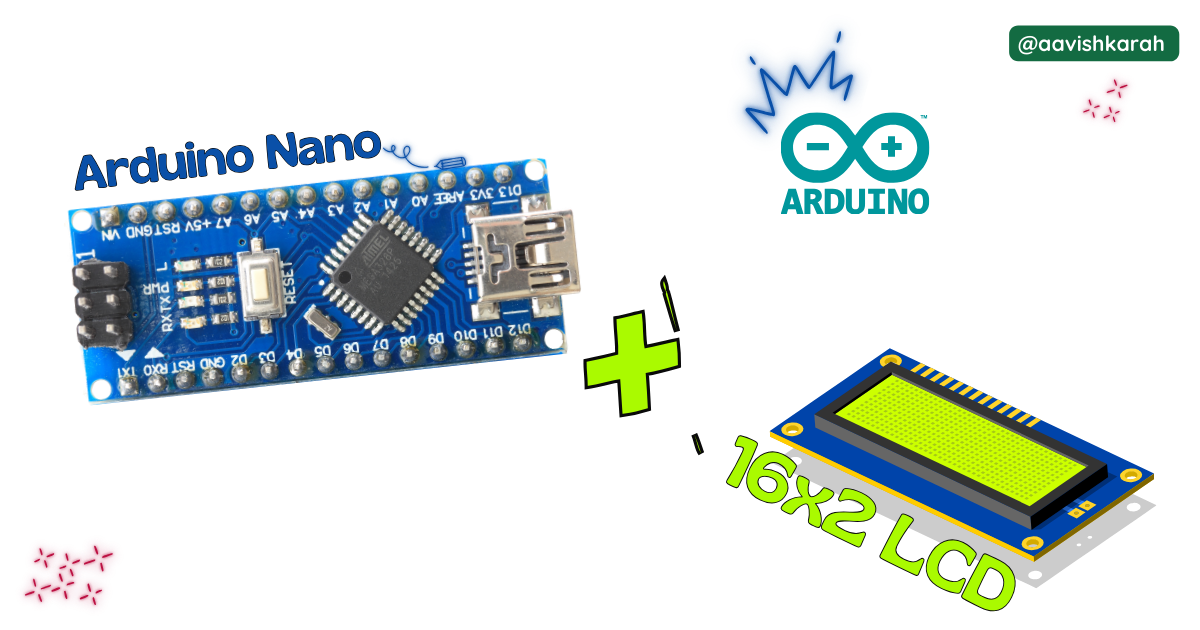
Table of Contents
Abstract
In this article, you’ll learn a detailed, step-by-step method to interface a 16×2 LCD character display with the Arduino Nano using the Arduino IDE. By the end, you’ll be able to display text on the LCD — a fundamental building block for many microcontroller projects like menus, status readouts, timers, and sensors display.
 Pre-Request
- OS : Windows / Linux / Mac / Chrome
- Arduino IDE
Hardware Required
Arduino boards, sensors, and maker essential Kits—perfectly matched for your learning.
- Arduino Nano.
- 16x2 LCD display.
- Resistors.
- Potentiometer (10 kΩ)
- BreadBoard.
- Mini USB Cable.
- Connecting wires.
- 5V DC power supply (Optional)
| Components | Purchase Link |
|---|---|
| Arduino Nano | link |
| 16x2 LCD | link |
| Mini USB Cable | link |
| Potentiometer (POT) | link |
| BreadBoard | large : small |
| Connecting Wires | link |
| 5V DC Adaptor | link |
Don't own a hardware 
No worries,
💡Still you can learn using simulation. check out simulation part  .
.
💡Power your mission with reliable Arduino Kits. Explore Hardware →
Connection Table
16x2 LCD can be connected in 4 wire and 8 wire mode. In this article 4 wire mode is demonstrated, as 8 wire mode is rarely used now a days.
Info
With I2C LCD interface, we can interface 16x2 LCD display in 2 wire mode. click here to know how to interface 16x2 LCD display in serial mode using 2 wire system.
| LCD Pin | LCD Function | Arduino Nano Pin | Notes |
|---|---|---|---|
| Pin 1 | VSS (GND) | GND | Ground |
| Pin 2 | VDD (+5 V) | +5 V | Power |
| Pin 3 | V0 (Contrast) | Pot middle pin | Adjust contrast |
| Pin 4 | RS (Register Select) | D6 | Defined above |
| Pin 5 | RW (Read/Write) | GND | Always write |
| Pin 6 | Enable (E) | D5 | Defined above |
| Pin 11 | D4 | D4 | Defined above |
| Pin 12 | D5 | D3 | Defined above |
| Pin 13 | D6 | D2 | Defined above |
| Pin 14 | D7 | D1 | Defined above |
| Pin 15 | LED + (Backlight) | +5 V via 220 Ω | Backlight (optional resistor) |
| Pin 16 | LED – (Backlight) | GND | Backlight |
Note
💡 Potentiometer between LCD V0 and GND/VDD lets you adjust contrast so text is visible

fig-Connection Diagram
 Code
Code
Code Explanation
Let’s break down the Arduino sketch line by line to clearly understand how the 16×2 LCD works with the Arduino Nano.
 Imports
- This line includes the LiquidCrystal library.
- It provides ready-to-use functions to control 16×2 LCD displays such as
print(),clear(),setCursor()etc.,
Define LCD Pin Connections
- These
#definestatements assign Arduino Nano pins to the LCD control and data pins. - RS (Register Select) chooses between command mode and data mode.
- E (Enable) triggers data transfer.
- D4–D7 are data lines used in 4-bit mode, reducing the number of pins required.
Create the LCD Object
- This creates an LCD object named
lcd. - The pin order must be: RS, Enable, D4, D5, D6, D7
- From this point onward, all LCD operations are performed using the
lcdobject.
Initialize the LCD in setup()
lcd.begin(16, 2)initializes the LCD with 16 columns and 2 rows.- This must be called before sending any data to the LCD.
Display Static Text
lcd.print("Welcome to")prints text on the first line.lcd.setCursor(0, 1)moves the cursor to column 0, row 1 (second line).lcd.print("Aavishkarah")displays text on the second line.delay(3000)pauses execution for 3 seconds.- This allows the welcome message to stay visible before moving to the loop section.
Display Numbers 0 to 9 Repeatedly
- The
loop()function runs continuously aftersetup()completes. - The
forloop counts from 0 to 9. lcd.clear()clears the LCD before printing the next number.lcd.print(i)displays the current number.delay(1500)holds each number on the display for 1.5 seconds.- After reaching 9, the loop restarts, creating an infinite display cycle.
Try It
- Alter the output content on the display by passing your data argument to the
lcd.print()method.
Simulation
Not able to view the simulation
- Desktop or Laptop : Reload this page ( Ctrl+R )
- Mobile : Use Landscape Mode and reload the page
Arduino boards, sensors, and maker essential Kits—perfectly matched for your learning.
Extras
Components details
- Arduino Nano Data Sheet
- 16x2 LCD Display Data Sheet
Modules / Libraries Used
- LiquidCrystal.h
- It provides ready-to-use functions to control 16×2 LCD displays such as
print(),clear(),setCursor()etc., - More info
- Github Source Code
- It provides ready-to-use functions to control 16×2 LCD displays such as