Interfacing NeoPixel RGB LEDs with Arduino Uno (Hardware & Wokwi Simulation)
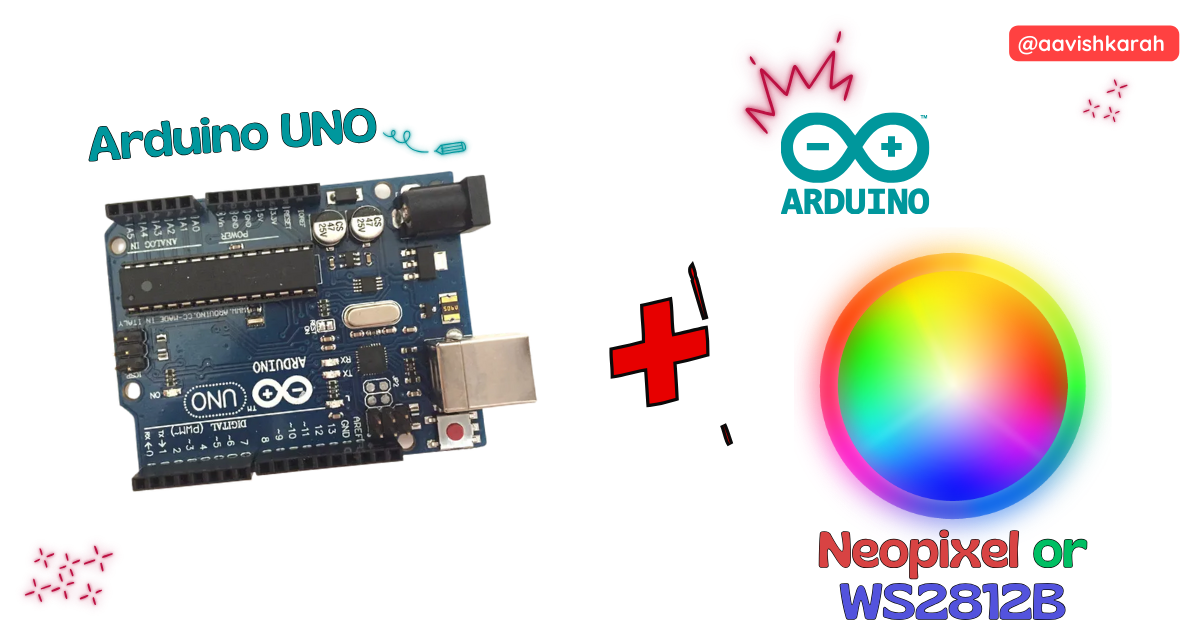
Table of Contents
Abstract
In this article, we will learn how to interface a 16-bit NeoPixel RGB LED ring (WS2812B) with an Arduino Uno. NeoPixels are smart RGB LEDs that allow us to control each LED’s color and brightness individually using just one data pin.
We will explore the hardware connections, understand how NeoPixel communication works, write the Arduino program, and test the project using both real hardware and Wokwi simulation.
 Pre-Request
- OS : Windows / Linux / Mac / Chrome
- Arduino IDE
Hardware Required
Arduino boards, sensors, and maker essential Kits—perfectly matched for your learning.
- Arduino Uno.
- NeoPixel RGB LED (WS2812B)
- BreadBoard.
- Mini USB Cable.
- Connecting wires.
- 5V DC power supply (Optional)
| Components | Purchase Link |
|---|---|
| Arduino Uno | link |
| NeoPixel RGB LED (WS2812B) | link |
| Mini USB Cable | link |
| BreadBoard | large : small |
| Connecting Wires | link |
| 5V DC Adaptor | link |
Don't own a hardware 
No worries,
💡Still you can learn using simulation. check out simulation part  .
.
💡Power your mission with reliable Arduino Kits. Explore Hardware →


Understanding NeoPixel RGB LEDs
NeoPixels (WS2812B) are addressable RGB LEDs with a built-in controller. Unlike normal RGB LEDs, NeoPixels require only one digital data wire to control all LEDs in a chain.
Each LED can display millions of colors by mixing Red, Green, and Blue values.
Advantages of NeoPixels
- Only one control pin
- Each LED is individually addressable
- Supports animations, gradients, and effects
- Ideal for college projects, wearables, IoT, and decorations
Connection Table
NeoPixel → Arduino Uno
| NeoPixel Pin | Arduino Uno |
|---|---|
| VCC | 5V |
| GND | GND |
| DIN | D6 |
Note
Safety & Stability Components - Place a 330Ω resistor between D6 and DIN - Place a 1000µF capacitor between 5V and GND near the NeoPixel
These protect the LED from voltage spikes and signal noise.

fig-Connection Diagram
 Code
Code
Info
Install Adafruit NeoPixel Library from Arduino Library Manager.
Code Explanation
 Include the NeoPixel Library
- This library enables Arduino to control WS2812B (NeoPixel) RGB LEDs.
- It manages precise timing required for NeoPixel communication and provides easy functions for color control.
Define the Data Pin and Number of LEDs
LED_PINspecifies that the NeoPixel data line is connected to Arduino Uno pin D6.NUM_LEDSindicates that 16 NeoPixels are connected in series (ring or strip).
Create the NeoPixel Object
This initializes a NeoPixel object with:
- 16 LEDs
- GRB color order (used by most WS2812B LEDs)
- 800 kHz communication frequency
Define the Color List
uint8_t colors[][3] = {
  {255, 0, 0},    // Red
  {0, 255, 0},    // Green
  {0, 0, 255},    // Blue
  {255, 169, 0},  // Orange
  {255, 255, 255} // White
};
This array stores multiple RGB colors:
- Each color is defined using Red, Green, and Blue intensity values (0–255).
- These colors will be displayed sequentially on the NeoPixel LEDs.
Calculate the Number of Colors
- This automatically calculates how many colors are stored in the array, making the code flexible if more colors are added later.
Initialize NeoPixels in setup()
- The
pixels.begin()function prepares the NeoPixel strip for operation. - This step is mandatory before controlling the LEDs.
Display Yellow Color First
for (int i = 0; i < NUM_LEDS; i++) {
  pixels.setPixelColor(i, pixels.Color(255, 255, 0));
}
pixels.show();
delay(2000);
- All 16 LEDs are set to yellow.
pixels.show()sends the data to the LEDs.- The yellow color stays ON for 2 seconds.
Start Cycling Through Defined Colors
for (int c = 0; c < numColors; c++) {
    for (int i = 0; i < NUM_LEDS; i++) {
        pixels.setPixelColor(i, pixels.Color(colors[c][0], colors[c][1], colors[c][2]));
        delay(50);
        pixels.show();
    }
    pixels.show();
    delay(1000);
}
- This outer loop iterates through each color stored in the
colorsarray. - Each LED lights up one after another using the current color.
delay(50)creates a smooth running-light animation effect.pixels.show()updates the LEDs in real time.- After all LEDs are lit with the same color, the color remains visible for 1 second.
- The loop then moves to the next color.
--
Common Issues & Troubleshooting
| Problem | Solution |
|---|---|
| LED not glowing | Check power and ground |
| Flickering | Add capacitor |
| Wrong colors | Check GRB order |
| No response | Check data pin and resistor |
Simulation
Not able to view the simulation
- Desktop or Laptop : Reload this page ( Ctrl+R )
- Mobile : Use Landscape Mode and reload the page
Arduino boards, sensors, and maker essential Kits—perfectly matched for your learning.
Extras
Components details
- Arduino Uno Data Sheet
Modules / Libraries Used
- Adafruit NeoPixel (Adafruit_NeoPixel.h)
- Arduino library for controlling single-wire-based LED pixels and strip such as the Adafruit 60 LED/meter Digital LED strip, WS2812B, the Adafruit FLORA RGB Smart Pixel, the Adafruit Breadboard-friendly RGB Smart Pixel, the Adafruit NeoPixel Stick, and the Adafruit NeoPixel Shield.
- More info
- Github Source Code
Conclusion
Interfacing a 16-NeoPixel RGB LED with Arduino Uno allows you to create stunning light effects with minimal wiring. With only one control pin, you can build animations, indicators, and artistic displays for STEAM, IoT, and creative electronics projects.
Using Wokwi simulation, students and developers can test designs before building physical circuits, making this project perfect for learning and prototyping.