How to Use Arduino Framework on Raspberry Pi Pico with Arduino IDE (Step-by-Step Guide)
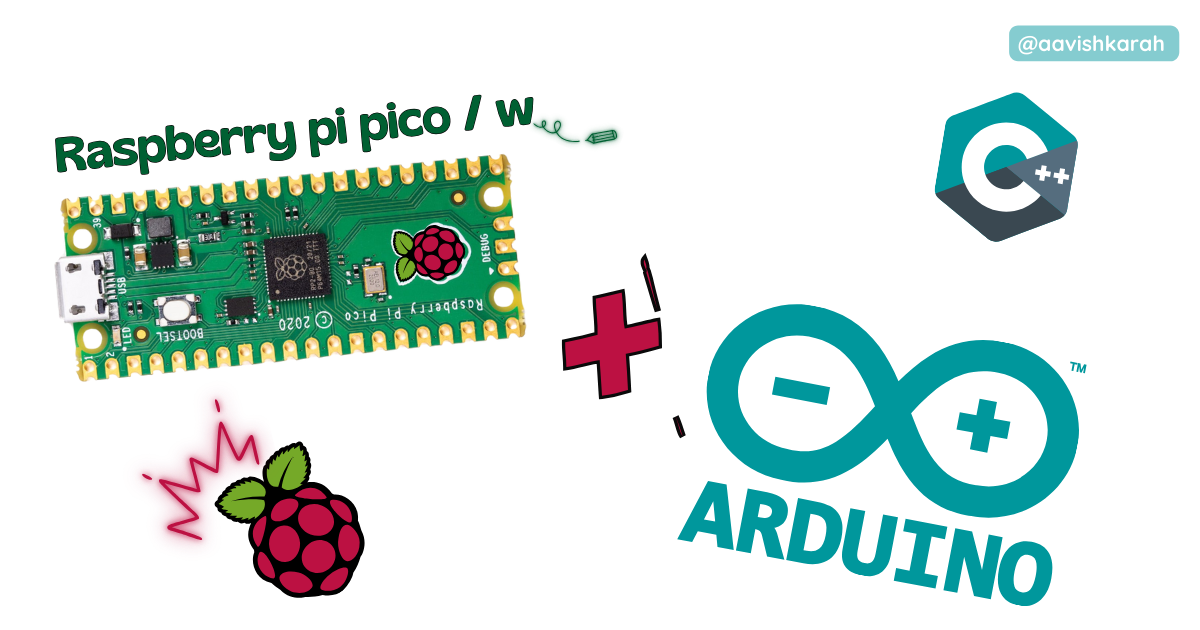
Table of Contents
- Abstract
- Pre-Requisites
- What is the Arduino Framework for Raspberry Pi Pico?
- Benefits of Using Arduino Framework on Pico
- Setting up Raspberry Pi Pico in Arduino IDE
- Selecting Raspberry Pi Pico Board
- Configuring the Arduino IDE
- First Example: Blink LED
- Uploading Without BOOTSEL (Drag-and-Drop)
- Common Issues & Troubleshooting
- Arduino Libraries Support on Pico
- Conclusion
Abstract
The Raspberry Pi Pico is a powerful and affordable microcontroller board based on the RP2040 chip. Although it is most commonly used with MicroPython or C/C++ SDK, the Pico hardware also supports the Arduino framework, making it easier for millions of Arduino developers to write code using the familiar Arduino API.
In this tutorial, we explain how to set up the Arduino framework for Raspberry Pi Pico using Arduino IDE, explore the benefits, configuration steps, and sample code to help you get started quickly.
Pre-Requisites
Before proceeding, ensure you have:
- Arduino IDE (v2.3.1 or later) installed : download here
- Raspberry Pi Pico board with USB cable
- Basic familiarity with Arduino IDE
- Micro USB or USB-C cable (depending on your Pico board)
What is the Arduino Framework for Raspberry Pi Pico?
The Arduino framework on Raspberry Pi Pico is an adaptation of the Arduino core that allows you to program the Pico using familiar Arduino functions like setup(), loop(), digitalWrite(), analogRead(), etc.
This enables:
- Seamless transition for Arduino developers
- Use of many Arduino libraries on Pico
- Familiar API for GPIO, PWM, I2C, SPI, Serial, etc.
- Rapid prototyping and community support
The core is supported through the Arduino Mbed RP2040 core, maintained officially by Arduino.
Benefits of Using Arduino Framework on Pico
| Feature | Arduino Core | MicroPython | C/C++ SDK |
|---|---|---|---|
| Ease of Use | ⭐⭐⭐⭐ | ⭐⭐⭐⭐⭐ | ⭐⭐ |
| Library Availability | ⭐⭐⭐⭐⭐ | ⭐⭐⭐⭐ | ⭐⭐⭐ |
| Beginner Friendly | ⭐⭐⭐⭐ | ⭐⭐⭐⭐⭐ | ⭐⭐ |
| Hardware Control | ⭐⭐⭐ | ⭐⭐⭐⭐ | ⭐⭐⭐⭐⭐ |
✔ Rapid prototyping
✔ Large library ecosystem
✔ Easy debugging with Serial Monitor
Setting up Raspberry Pi Pico in Arduino IDE
Step 1: Install Arduino IDE
Download from: - link - https://www.arduino.cc/en/software
Step 2: Open Boards Manager
In Arduino IDE:
File → Preferences
Add the following in Additional Boards Manager URLs:


Step 3: Install RP2040 Boards
Go to:
Tools → Board → Boards Manager

Search for Pico and install:
“Raspberry Pi Pico/RP2040/RP2350”

Time of Installation

After Installation

Selecting Raspberry Pi Pico Board
After installation:
- Go to
Tools → Board - Scroll to Raspberry Pi Pico/RP2040/RP2350
- Choose:
- “Raspberry Pi Pico”
- Or “Raspberry Pi Pico W” (if using wireless board)
- Or “Raspberry Pi Pico 2” (if using RP2350 board)
- Or “Raspberry Pi Pico 2W” (if using RP2350 wireless board)

Configuring the Arduino IDE
After selecting the board:
| Setting | Value |
|---|---|
| Board | Raspberry Pi Pico |
| Port | (Choose the COM/Serial port) |
Info
Make sure the correct COM port is selected before uploading code.
First Example: Blink LED
Don't own a hardware 
No worries,
Still you can learn using simulation.
check out simulation part  .
.
Create a new sketch and paste:
void setup() {
  pinMode(25, OUTPUT);  // Onboard LED
}

void loop() {
  digitalWrite(25, HIGH);
  delay(500);
  digitalWrite(25, LOW);
  delay(500);
}
- Save the sketch
- Click Upload
- Pico will blink its onboard LED
Note
🧪 The onboard LED on Raspberry Pi Pico is connected to GPIO 25.
Uploading Without BOOTSEL (Drag-and-Drop)
If automatic programming fails:
- Hold BOOTSEL button
- Connect Pico to USB
- It appears as mass storage
- Drag the
.uf2file from Arduino IDE output into the drive
Common Issues & Troubleshooting
| Problem | Solution |
|---|---|
| Upload not working | Press BOOTSEL while uploading |
| Wrong board | Check Tools → Board selection |
| No Serial output | Match Serial baud rate |
Arduino Libraries Support on Pico
Most Arduino libraries work on Pico, including:
- OLED libraries
- NeoPixel / WS2812 libraries
- DHT, BMP, BME sensors
- WiFi/LoRa modules (third-party)
📌 Just install via Library Manager and include normally.
Conclusion
Using the Arduino framework with Raspberry Pi Pico brings the best of both worlds: the powerful RP2040 / RP2350 hardware and the simple Arduino programming model. Whether you are a beginner or advanced developer, this setup accelerates hardware prototyping and learning.
Now you can: ✔ Blink LEDs ✔ Read sensors ✔ Drive displays ✔ Use communication protocols ✔ Build complete IoT projects
All using the Arduino IDE you know and love.