Interfacing 128x64 Monochrome OLED (SSD1306) with Raspberry Pi Pico (MicroPython)
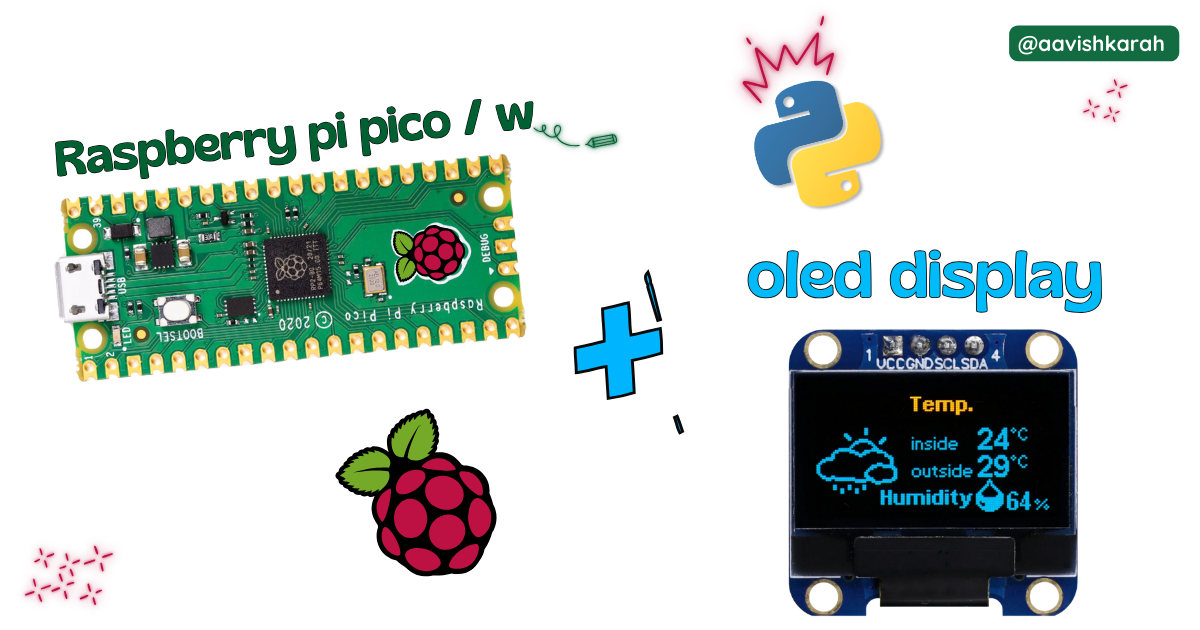
Table of Contents
- 🧾 Abstract
- 📚 Prerequisites
- 🧰 Hardware Required
- ⚡ Understanding the OLED Display (SSD1306)
- 🧷 Connection / Wiring Guide (I2C Mode)
- 🧩 Connection Diagram
- 🛠️ Step-by-Step Setup Instructions
- Code
- 🧠 Code Explanation
- Simulation
- 🧩 Extras (OLED Module Details & Documentation)
- 🚀 Advanced Tips & Alternative Approaches
- 🛑 Troubleshooting (Common Issues & Fixes)
- 🧪 Testing I2C Address (Recommended)
- 🏗️ Project Extensions / Next Steps
- 📌 References (Official & Useful Links)
- 🏁 Conclusion
🧾 Abstract
Monochrome OLED displays are widely used in embedded projects because they are compact, sharp, and consume low power. In this guide, you will learn how to interface a 128x64 SSD1306 OLED display with the Raspberry Pi Pico variant using MicroPython. By the end, you’ll be able to display text, draw shapes, and build your own mini dashboards.
📚 Prerequisites
Before starting, you should know:
- Basic understanding of GPIO pins
- Basic knowledge of MicroPython
- Familiarity with Thonny IDE
✅ Supported OS
| Platform | Supported |
|---|---|
| Windows 10/11 | ✅ Yes |
| Ubuntu/Linux | ✅ Yes |
| macOS | ✅ Yes |
Recommended Software Versions
| Software | Recommended Version |
|---|---|
| MicroPython Firmware (Pico) | Latest stable |
| Thonny IDE | 4.0+ |
| Python | 3.8+ |
Note
If you're using Arduino IDE instead of Thonny, you can still follow the wiring section. The code section is written in MicroPython.
🧰 Hardware Required
Raspberry Pi Pico, Arduino, sensors, and IoT maker essential Kits—perfectly matched for your learning.
| Component | Specification | Quantity | Purchase Link |
|---|---|---|---|
| Raspberry Pi Pico | RP2040 Dual Core | 1 | Buy Here |
| OLED Display Module | SSD1306, 128x64, I2C | 1 | Buy Here |
| Breadboard | Mini/Full size | 1 | Buy Here |
| Jumper Wires | Male-to-Male | 5+ | Buy Here |
| Micro USB Cable | Data Cable | 1 | Buy Here |
⚡ Understanding the OLED Display (SSD1306)
The SSD1306 is a popular OLED driver IC used in small 128x64 monochrome displays.
Why SSD1306 OLED is Popular? 💡
- No backlight required (OLED pixels emit light)
- Very sharp text
- Low power usage
- Supports I2C and SPI
- Great for dashboards and sensor projects
OLED Resolution Meaning
128x64 means:
- 128 pixels horizontally
- 64 pixels vertically
You can draw:
- Text
- Lines
- Rectangles
- Icons (bitmaps)
🧷 Connection / Wiring Guide (I2C Mode)
Most SSD1306 OLED modules use I2C, which requires only 2 communication pins:
- SDA (Data)
- SCL (Clock)
📌 Pico to OLED Pin Mapping Table
| OLED Pin | Pico Pin | Pico GPIO | Description |
|---|---|---|---|
| VCC | 3.3V | — | Power supply (3.3V recommended) |
| GND | GND | — | Ground |
| SDA | GP2 | GPIO2 | I2C Data Line |
| SCL | GP3 | GPIO3 | I2C Clock Line |
Warning
⚠️ Do NOT connect OLED VCC to 5V unless your OLED module explicitly supports it. Most SSD1306 OLED displays are designed for 3.3V logic.
Tip
- Raspberry Pi Pico supports multiple I2C buses.
- If you want, you can use other pins like
GP4/GP5for I2C0.
🧩 Connection Diagram

fig-Connection Diagram
🛠️ Step-by-Step Setup Instructions
✅ Step 1: Install MicroPython Firmware on Pico
✅ Step 2: Upload SSD1306 OLED Driver Library
MicroPython does not include OLED drivers by default, so we need:
ssd1306.py
Download Driver: Download from github : ssd1306.py
Upload to Pico using Thonny
- Open Thonny
- Save the driver content it into Pico as
ssd1306.py
Tip
Make sure the file is saved inside the Pico filesystem (not your PC).
 Code
Code
# MicroPython SSD1306 OLED driver, I2C and SPI interfaces

from micropython import const
import framebuf


# register definitions
SET_CONTRAST = const(0x81)
SET_ENTIRE_ON = const(0xA4)
SET_NORM_INV = const(0xA6)
SET_DISP = const(0xAE)
SET_MEM_ADDR = const(0x20)
SET_COL_ADDR = const(0x21)
SET_PAGE_ADDR = const(0x22)
SET_DISP_START_LINE = const(0x40)
SET_SEG_REMAP = const(0xA0)
SET_MUX_RATIO = const(0xA8)
SET_IREF_SELECT = const(0xAD)
SET_COM_OUT_DIR = const(0xC0)
SET_DISP_OFFSET = const(0xD3)
SET_COM_PIN_CFG = const(0xDA)
SET_DISP_CLK_DIV = const(0xD5)
SET_PRECHARGE = const(0xD9)
SET_VCOM_DESEL = const(0xDB)
SET_CHARGE_PUMP = const(0x8D)

# Subclassing FrameBuffer provides support for graphics primitives
# http://docs.micropython.org/en/latest/pyboard/library/framebuf.html
class SSD1306(framebuf.FrameBuffer):
    def __init__(self, width, height, external_vcc):
        self.width = width
        self.height = height
        self.external_vcc = external_vcc
        self.pages = self.height // 8
        self.buffer = bytearray(self.pages * self.width)
        super().__init__(self.buffer, self.width, self.height, framebuf.MONO_VLSB)
        self.init_display()

    def init_display(self):
        for cmd in (
            SET_DISP,  # display off
            # address setting
            SET_MEM_ADDR,
            0x00,  # horizontal
            # resolution and layout
            SET_DISP_START_LINE,  # start at line 0
            SET_SEG_REMAP | 0x01,  # column addr 127 mapped to SEG0
            SET_MUX_RATIO,
            self.height - 1,
            SET_COM_OUT_DIR | 0x08,  # scan from COM[N] to COM0
            SET_DISP_OFFSET,
            0x00,
            SET_COM_PIN_CFG,
            0x02 if self.width > 2 * self.height else 0x12,
            # timing and driving scheme
            SET_DISP_CLK_DIV,
            0x80,
            SET_PRECHARGE,
            0x22 if self.external_vcc else 0xF1,
            SET_VCOM_DESEL,
            0x30,  # 0.83*Vcc
            # display
            SET_CONTRAST,
            0xFF,  # maximum
            SET_ENTIRE_ON,  # output follows RAM contents
            SET_NORM_INV,  # not inverted
            SET_IREF_SELECT,
            0x30,  # enable internal IREF during display on
            # charge pump
            SET_CHARGE_PUMP,
            0x10 if self.external_vcc else 0x14,
            SET_DISP | 0x01,  # display on
        ):  # on
            self.write_cmd(cmd)
        self.fill(0)
        self.show()

    def poweroff(self):
        self.write_cmd(SET_DISP)

    def poweron(self):
        self.write_cmd(SET_DISP | 0x01)

    def contrast(self, contrast):
        self.write_cmd(SET_CONTRAST)
        self.write_cmd(contrast)

    def invert(self, invert):
        self.write_cmd(SET_NORM_INV | (invert & 1))

    def rotate(self, rotate):
        self.write_cmd(SET_COM_OUT_DIR | ((rotate & 1) << 3))
        self.write_cmd(SET_SEG_REMAP | (rotate & 1))

    def show(self):
        x0 = 0
        x1 = self.width - 1
        if self.width != 128:
            # narrow displays use centred columns
            col_offset = (128 - self.width) // 2
            x0 += col_offset
            x1 += col_offset
        self.write_cmd(SET_COL_ADDR)
        self.write_cmd(x0)
        self.write_cmd(x1)
        self.write_cmd(SET_PAGE_ADDR)
        self.write_cmd(0)
        self.write_cmd(self.pages - 1)
        self.write_data(self.buffer)


class SSD1306_I2C(SSD1306):
    def __init__(self, width, height, i2c, addr=0x3C, external_vcc=False):
        self.i2c = i2c
        self.addr = addr
        self.temp = bytearray(2)
        self.write_list = [b"\x40", None]  # Co=0, D/C#=1
        super().__init__(width, height, external_vcc)

    def write_cmd(self, cmd):
        self.temp[0] = 0x80  # Co=1, D/C#=0
        self.temp[1] = cmd
        self.i2c.writeto(self.addr, self.temp)

    def write_data(self, buf):
        self.write_list[1] = buf
        self.i2c.writevto(self.addr, self.write_list)


class SSD1306_SPI(SSD1306):
    def __init__(self, width, height, spi, dc, res, cs, external_vcc=False):
        self.rate = 10 * 1024 * 1024
        dc.init(dc.OUT, value=0)
        res.init(res.OUT, value=0)
        cs.init(cs.OUT, value=1)
        self.spi = spi
        self.dc = dc
        self.res = res
        self.cs = cs
        import time

        self.res(1)
        time.sleep_ms(1)
        self.res(0)
        time.sleep_ms(10)
        self.res(1)
        super().__init__(width, height, external_vcc)

    def write_cmd(self, cmd):
        self.spi.init(baudrate=self.rate, polarity=0, phase=0)
        self.cs(1)
        self.dc(0)
        self.cs(0)
        self.spi.write(bytearray([cmd]))
        self.cs(1)

    def write_data(self, buf):
        self.spi.init(baudrate=self.rate, polarity=0, phase=0)
        self.cs(1)
        self.dc(1)
        self.cs(0)
        self.spi.write(buf)
        self.cs(1)
🧠 Code Explanation
Let’s break down what the code does.
 Import Required Libraries
Pin: controls GPIO pinsI2C: creates I2C communication interfacessd1306: OLED driver librarytime: for delay
Initializing I2C
This creates an I2C bus:
- Bus ID:
1(I2C1) - SCL = GPIO2
- SDA = GPIO3
- Frequency =
400kHz
Note
I2C speed is typically 100kHz or 400kHz. SSD1306 works well with 400kHz for faster screen refresh.
OLED Initialization
This tells MicroPython:
- The OLED resolution is
128x64 - Communication uses I2C
Clearing the Screen
fill(0)clears the buffershow()updates the OLED hardware
Tip
OLED updates only after oled.show() is called.
Displaying Text
- First parameter: text string
- Second: X coordinate
- Third: Y coordinate
Drawing Shapes
- Rectangle Border
-
Draws a rectangle border around the screen.
-
Filled Rectangle
-
Draws a solid box.
-
Lines
Used for UI design and separators.
Counter Demo (Infinite Loop)
The display updates every second with a new number.
Warning
Since this loop never ends, it will run until the Pico is reset or unplugged.
Simulation
Not able to view the simulation
- Desktop or Laptop : Reload this page ( Ctrl+R )
- Mobile : Use Landscape Mode and reload the page
You can simulate Raspberry Pi Pico + OLED using Wokwi.
Raspberry Pi Pico, Arduino, sensors, and IoT maker essential Kits—perfectly matched for your learning.

🧩 Extras (OLED Module Details & Documentation)
SSD1306 OLED Pinout Reference
| Pin | Meaning |
|---|---|
| VCC | Power (3.3V / 5V depending on module) |
| GND | Ground |
| SDA | I2C Data |
| SCL | I2C Clock |
Note
Some OLED boards include onboard voltage regulators, but logic may still be 3.3V. Always check module datasheet.
🚀 Advanced Tips & Alternative Approaches
- 💡 Use I2C0 Instead of I2C1: You can use different GPIO pins
-
💡 Display Sensor Values (Mini Dashboard) Once OLED works, you can display:
- Temperature (DHT11/DHT22)
- Soil moisture
- Ultrasonic distance
- Potentiometer analog readings
-
Reduce OLED Flicker Instead of clearing full screen every time:
- Update only parts of the display
- Avoid too frequent
oled.show()
🛑 Troubleshooting (Common Issues & Fixes)
❌ Issue 1: OLED Screen is Blank
✅ Possible causes:
- Wrong wiring
- Wrong I2C address
- OLED not powered properly
✅ Fix:
- Confirm connections
- Run I2C scan code
- Ensure VCC is connected to 3.3V
Warning
If you connect VCC incorrectly, OLED may not work or may get damaged.
❌ Issue 2: ImportError: no module named 'ssd1306'
✅ Cause:
ssd1306.pynot uploaded to Pico
✅ Fix:
- Upload
ssd1306.pyinto Pico root directory using Thonny
❌ Issue 3: OSError: [Errno 5] EIO
✅ Cause:
- Pico cannot communicate with OLED over I2C
✅ Fix:
- Ensure SDA/SCL are correct pins
- Check loose jumper wires
- Try lowering I2C frequency:
❌ Issue 4: Text is Cut Off / Not Visible
✅ Cause:
- Wrong coordinates or screen size mismatch
✅ Fix:
- Ensure you set correct resolution:
🧪 Testing I2C Address (Recommended)
Most SSD1306 OLED modules use address:
0x3C(most common)0x3D(rare)
Use this code to scan:
Tip
If you see 0x3c, your OLED is detected correctly 🎉
🏗️ Project Extensions / Next Steps
Once your OLED is working, try these mini projects 🚀:
✅ 1. OLED Temperature Monitor 🌡️
- Connect a DHT11/DHT22 sensor
- Display temperature + humidity
✅ 2. Pico Stopwatch / Timer ⏱️
- Use push buttons for start/stop/reset
- Display time on OLED
✅ 3. IoT OLED Dashboard 🌐
- Use WiFi module Pico (Raspberry Pi Pico W or Pico 2 W)
- Fetch live data (weather, stock price, IoT sensor values)
Tip
These projects make excellent portfolio demos for students and IoT beginners.
📌 References (Official & Useful Links)
- Raspberry Pi Pico / Pico 2 : Pin Diagram
- Raspberry Pi Pico : Data Sheet
- Raspberry Pi Pico 2 : Data Sheet
- Raspberry Pi Pico W : Data Sheet
- Raspberry Pi Pico 2 W : Data Sheet
- Raspberry Pi Pico Documentation: Official Docs
📄 SSD1306 Resources
- SSD1306 Datasheet: Datasheet
- MicroPython SSD1306 Driver (Official): GitHub Driver
🏁 Conclusion
You have successfully interfaced a 128x64 SSD1306 OLED display with the Raspberry Pi Pico using MicroPython 🎉. Now you can display text, create UI dashboards, and visualize sensor data in your embedded projects. OLED displays are a powerful upgrade for IoT and maker builds—small but incredibly useful!